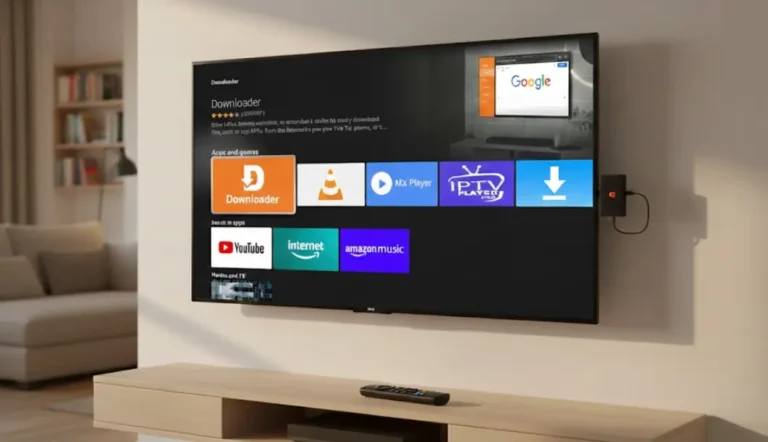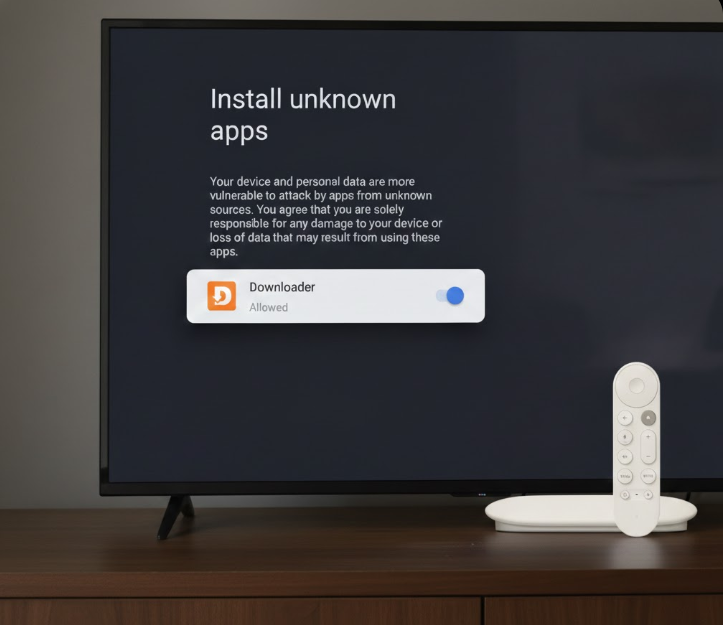
The Google TV Streamer (released in 2024) runs on Android TV 14, and sideloading third-party apps is fully supported—but the process differs slightly from older Android TV devices or Fire TV. Google hides the “Install unknown apps” menu for security, so you can’t access it directly. Instead, the permission unlocks automatically when you attempt to install an APK using a tool like Downloader by AFTVnews.
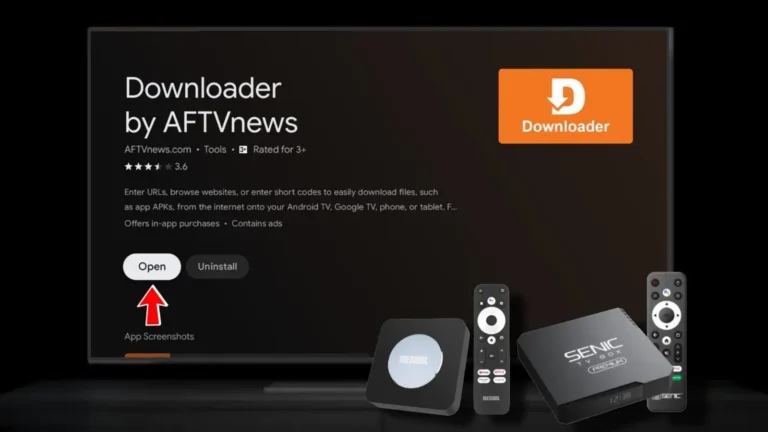
Downloader by AFTVnews is the most popular and reliable app for this, available directly on the Google Play Store for Google TV devices. It features a remote-friendly browser, short code support, and built-in file manager—perfect for the Streamer’s Ethernet port and fast performance.
Important Safety Note: Sideloading is legal, but only download APKs from trusted sources (e.g., APKMirror, official developer sites) to avoid malware. Consider using a VPN for privacy.
Step 1: Install Downloader by AFTVnews
- From the Google TV home screen, open the Google Play Store.
- Search for “Downloader by AFTVnews” (include “AFTVnews” if needed—orange icon).
- Select Install (free, ~8MB).
Direct Link: Downloader on Google Play
Step 2: Enable Developer Options (Required to Unlock Permissions)
This step is crucial—it allows the hidden “Install unknown apps” prompt to appear.
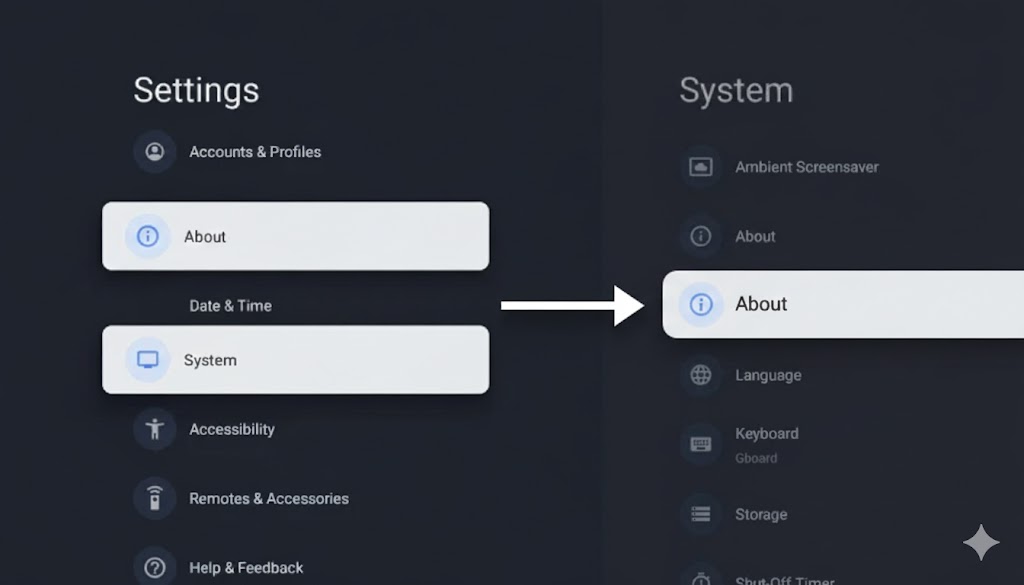
- Go to Settings (gear icon) > System > About.
- Scroll to Android TV OS build (or similar).
- Select it 7 times quickly until “You are now a developer!” appears.
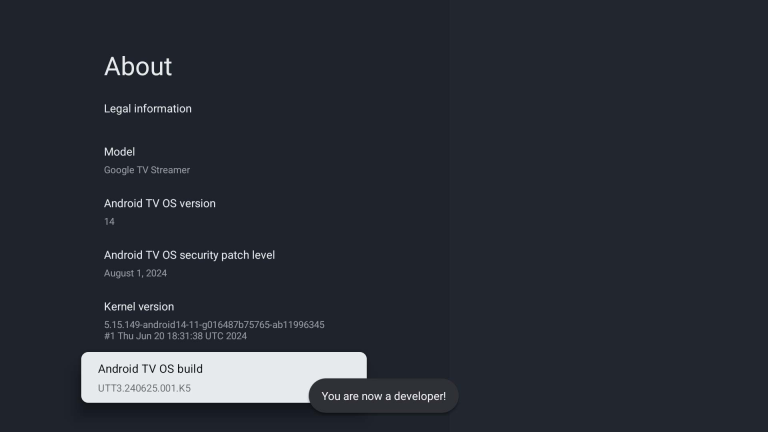
Developer Options are now enabled (no need to enter them).
Step 3: Sideload an App Using Downloader
Now download and install your desired APK—this triggers the permission.
- Open Downloader by AFTVnews.
- In the URL bar, enter:
- A direct APK URL (e.g., from APKMirror).
- A short numeric code (from go.aftvnews.com).
- Or browse/search for the file.
- Download the APK.
- When complete, a security pop-up appears: “For your security, your TV is set to block installation…”
- Select Settings on the pop-up.
- Toggle Allow from this source (or Downloader) to Allowed.
- Return to Downloader and select Install.
- Follow on-screen prompts (may see Play Protect warning—choose “Install anyway”).
Optional: In Downloader’s Files tab, delete the APK to save space.
Troubleshooting (2026 Issues)
- No Security Pop-up? Re-enable Developer Options and retry.
- “Unknown Sources Disabled” Message? Developer Options not properly enabled—repeat Step 2.
- Play Protect Blocks? Temporarily disable in Settings > Apps > Security > Google Play Protect > Gear > Turn off scanning.
- Downloader Not in Play Store? Check region or sideload Downloader’s APK first using another method (e.g., Send Files to TV app).
This method works reliably on the Google TV Streamer as of January 2026. Once set up, sideload apps like SmartTube, Kodi, or custom streaming tools instantly. For the latest codes and tips, visit AFTVnews.com or TroyPoint.com. Enjoy your expanded Google TV experience! 🚀