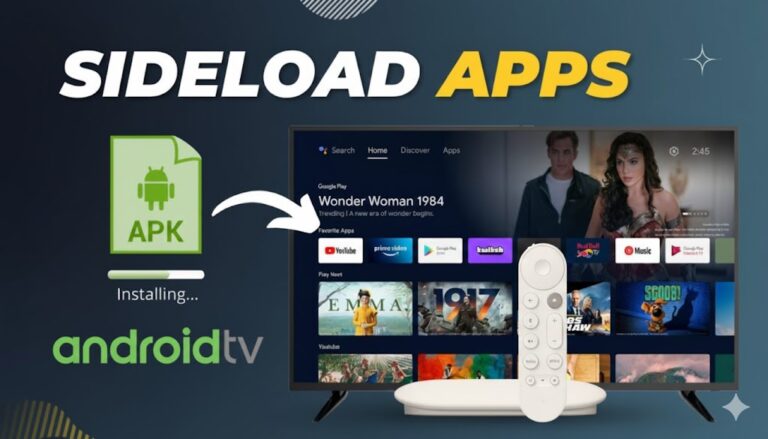
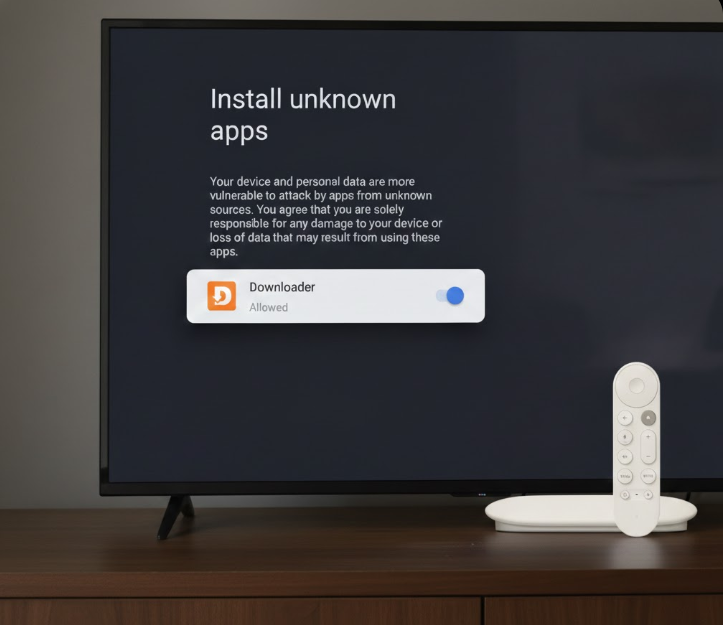
Sideloading apps on Android TV or Google TV devices (like Chromecast with Google TV, NVIDIA Shield, or the Google TV Streamer) requires enabling permission for specific apps to install APKs from unknown sources. In modern versions (Android TV 12, 13, and 14 as of 2026), there’s no global “Unknown Sources” toggle—instead, it’s per-app for better security.
This setting is often hidden or grayed out until you enable Developer Options and attempt an installation (e.g., via Downloader by AFTVnews). Once enabled, you can safely sideload third-party apps like streaming tools.
Why Enable Install Unknown Apps?
- Allows sideloading APKs not available in the Google Play Store.
- Essential for apps like Downloader, file managers, or custom streaming services.
- Secure: Permissions are granted per app (e.g., only Downloader can install unknowns).
Warning: Only download APKs from trusted sources (e.g., APKMirror, official sites) to avoid malware. Use a VPN for privacy.
Step-by-Step Guide to Enable Install Unknown Apps (2026)
Step 1: Enable Developer Options (Required for Access)
Many users find the setting grayed out without this.
- Go to Settings (gear icon on home screen).
- Scroll to System > About (or directly About on some devices).
- Scroll down to Android TV OS build or Build.
- Click it 7 times quickly with your remote.
- You’ll see a toast message: “You are now a developer!”
Developer Options now appear under System.
Step 2: Trigger the Permission Prompt (Easiest Method)
The best way is to attempt a download/install—this automatically prompts the setting.
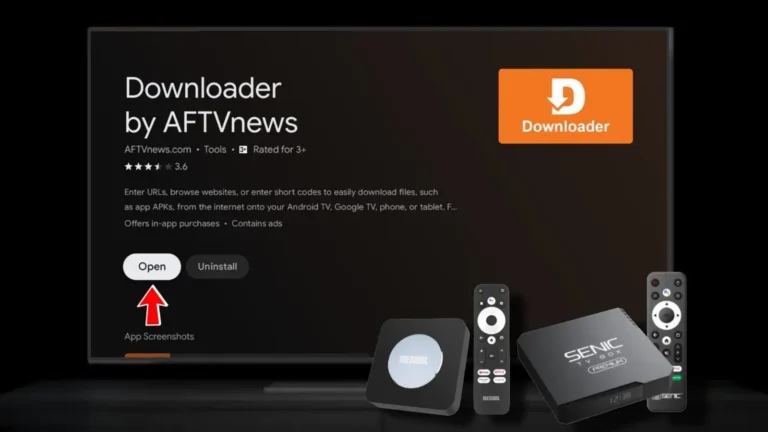
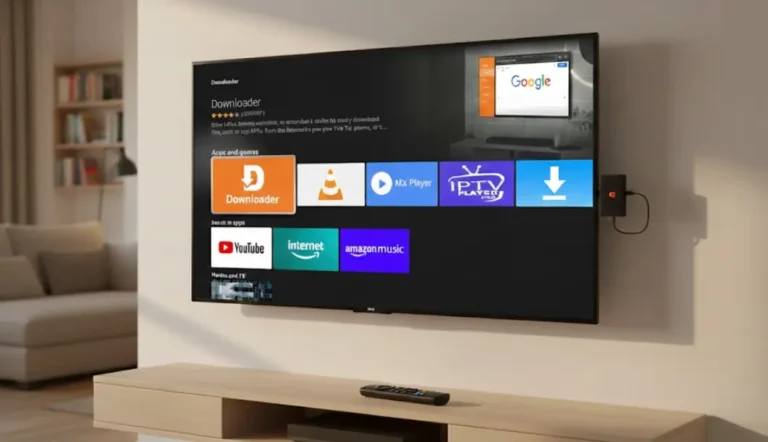
- Install Downloader by AFTVnews (search in Play Store).
- Open Downloader and enter a valid APK URL or short code (e.g., a test APK).
- Start the download.
- When the APK finishes downloading, try to install it.
- A security pop-up appears: “For your security, your TV is set to block installation of apps…”
- Select Settings on the pop-up.
- Toggle Allow from this source or Downloader to Allowed.
Now Downloader (or your file manager) can install APKs.
Alternative: Manual Navigation to the Setting
If the prompt doesn’t appear:
- Go to Settings > Apps > See all apps.
- Scroll down to Special app access (or Security & restrictions > Install unknown apps on older versions).
- Select Install unknown apps.
- Choose the app (e.g., Downloader or your file browser).
- Toggle it to Allow.
On Android TV 14 (e.g., Google TV Streamer), this menu may only unlock after Developer Options and a install attempt.
Troubleshooting Common Issues (January 2026)
- Setting Grayed Out? Ensure Developer Options are enabled and retry an install attempt.
- No Prompt Appears? Temporarily disable Play Protect: Settings > Apps > Security > Google Play Protect > Gear icon > Turn off “Scan apps with Play Protect.”
- On Older Devices? Path may be Settings > Security & Restrictions > Unknown sources.
- Play Protect Blocks Install? Select “Install anyway” during the warning.
Once enabled, sideload safely with tools like Downloader by AFTVnews. For the latest tips, check AFTVnews.com or TroyPoint.com. Enjoy expanded apps on your Android TV! 🚀